Create Gallery in MinkShot
Follow these steps to create your first gallery and upload your photos.
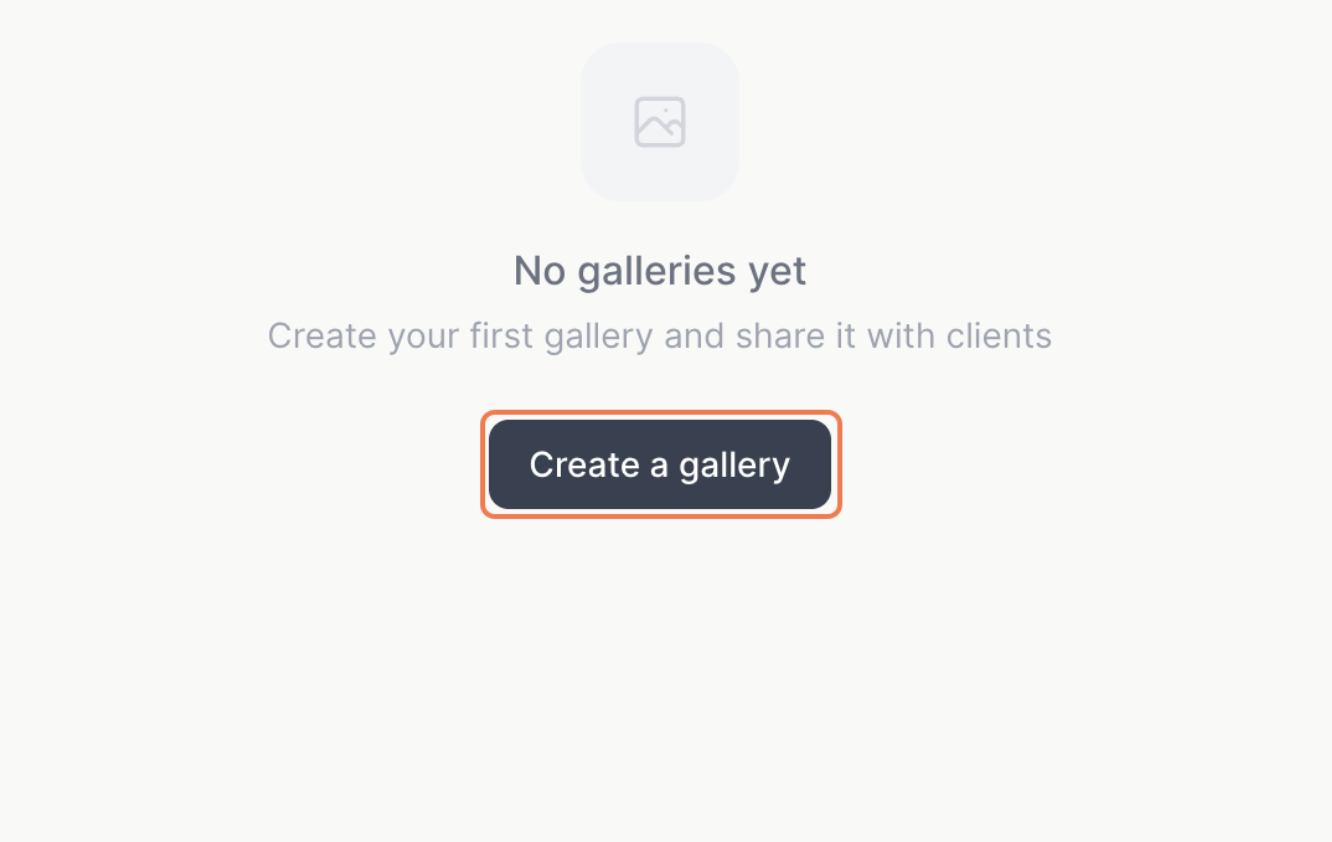
Step 1 — Click on Create a gallery
From your dashboard, find the Create a gallery button and click it.
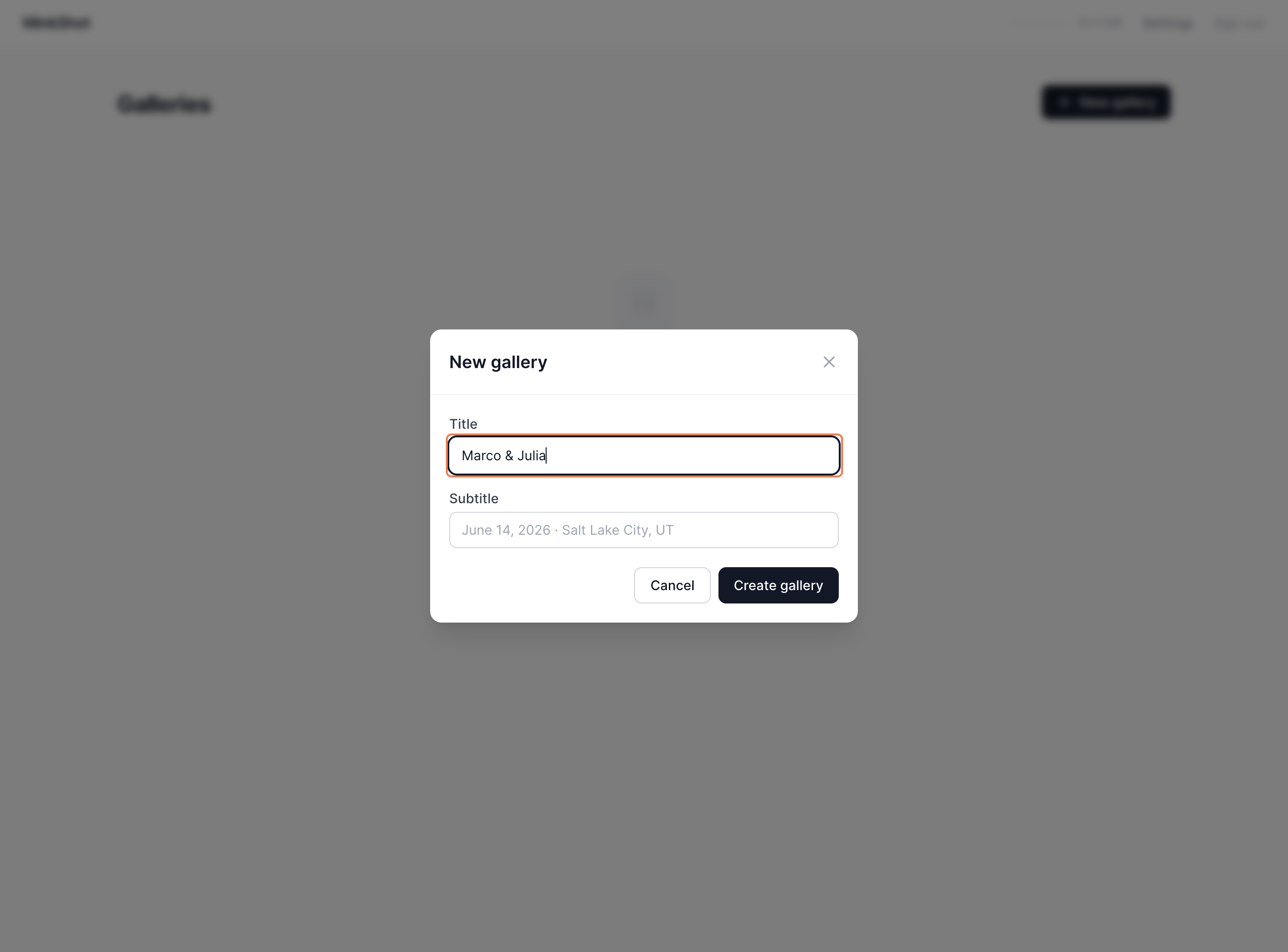
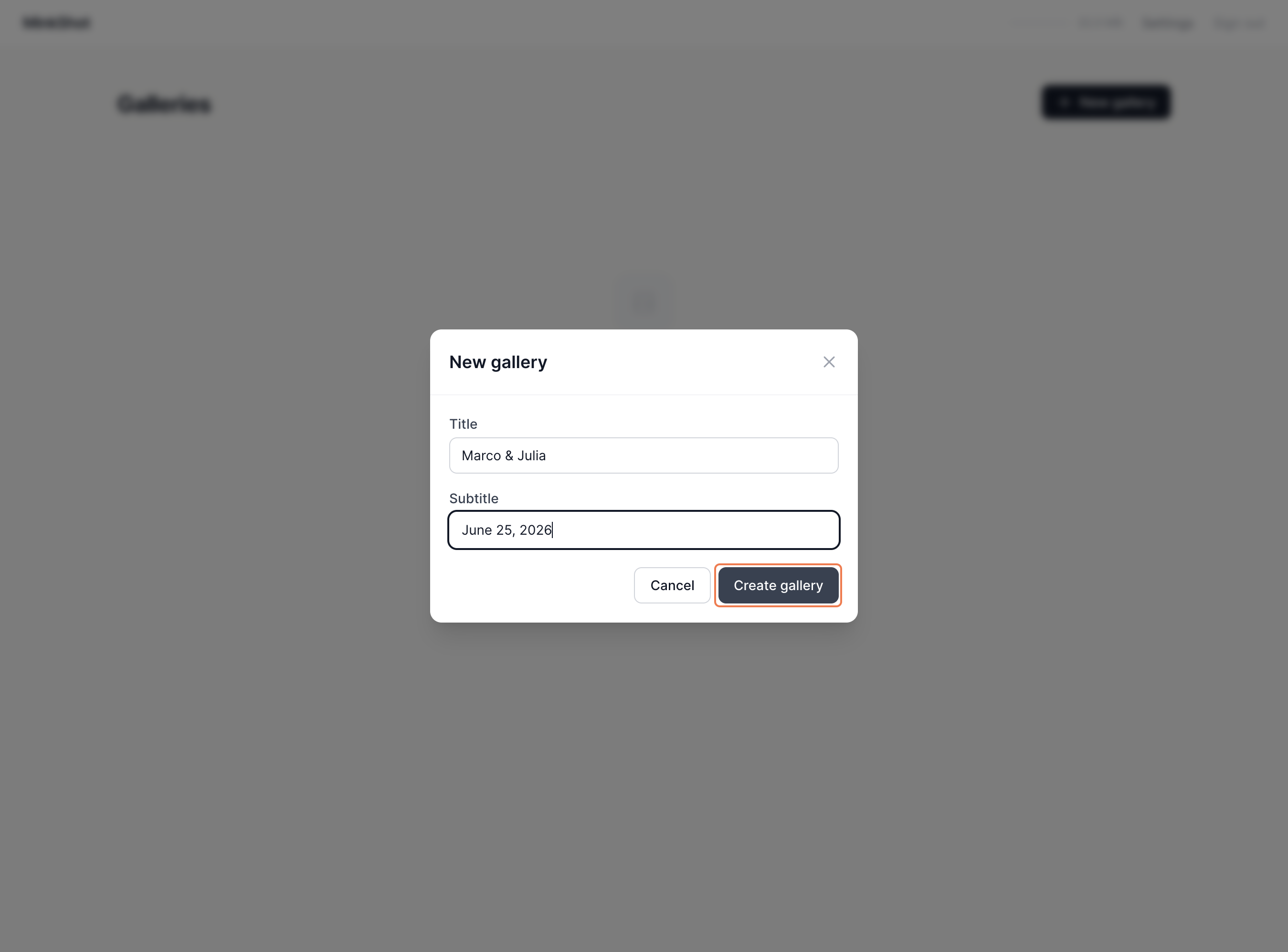
Step 2 — Add a title
Enter a name for your gallery (for example: Sarah & James Wedding).
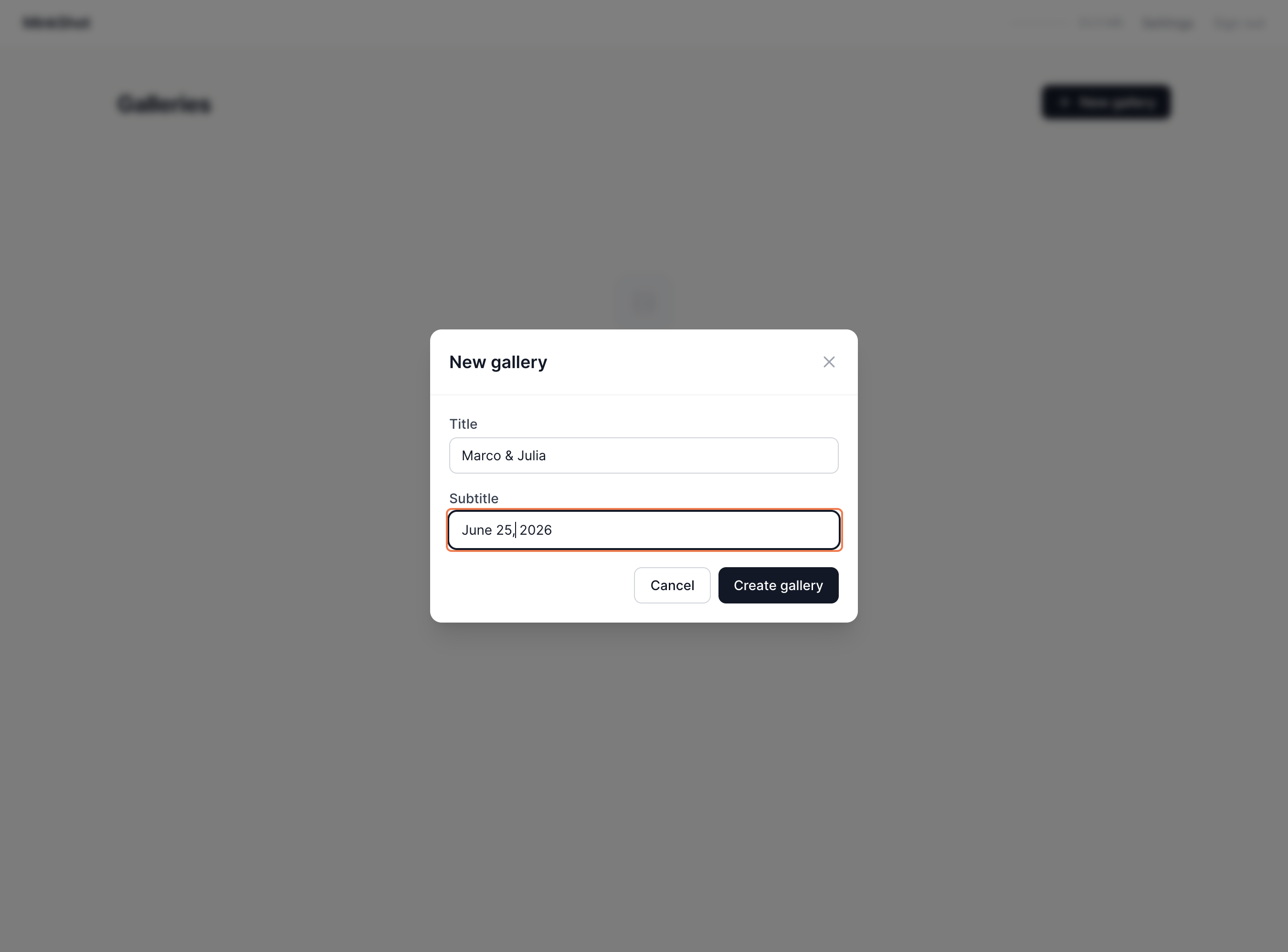
Step 3 — Add a subtitle (optional)
You can add a subtitle with the date, location, or any extra detail for your client.
Step 4 — Click on Create gallery
Once you're happy with the title, click Create gallery to save it.
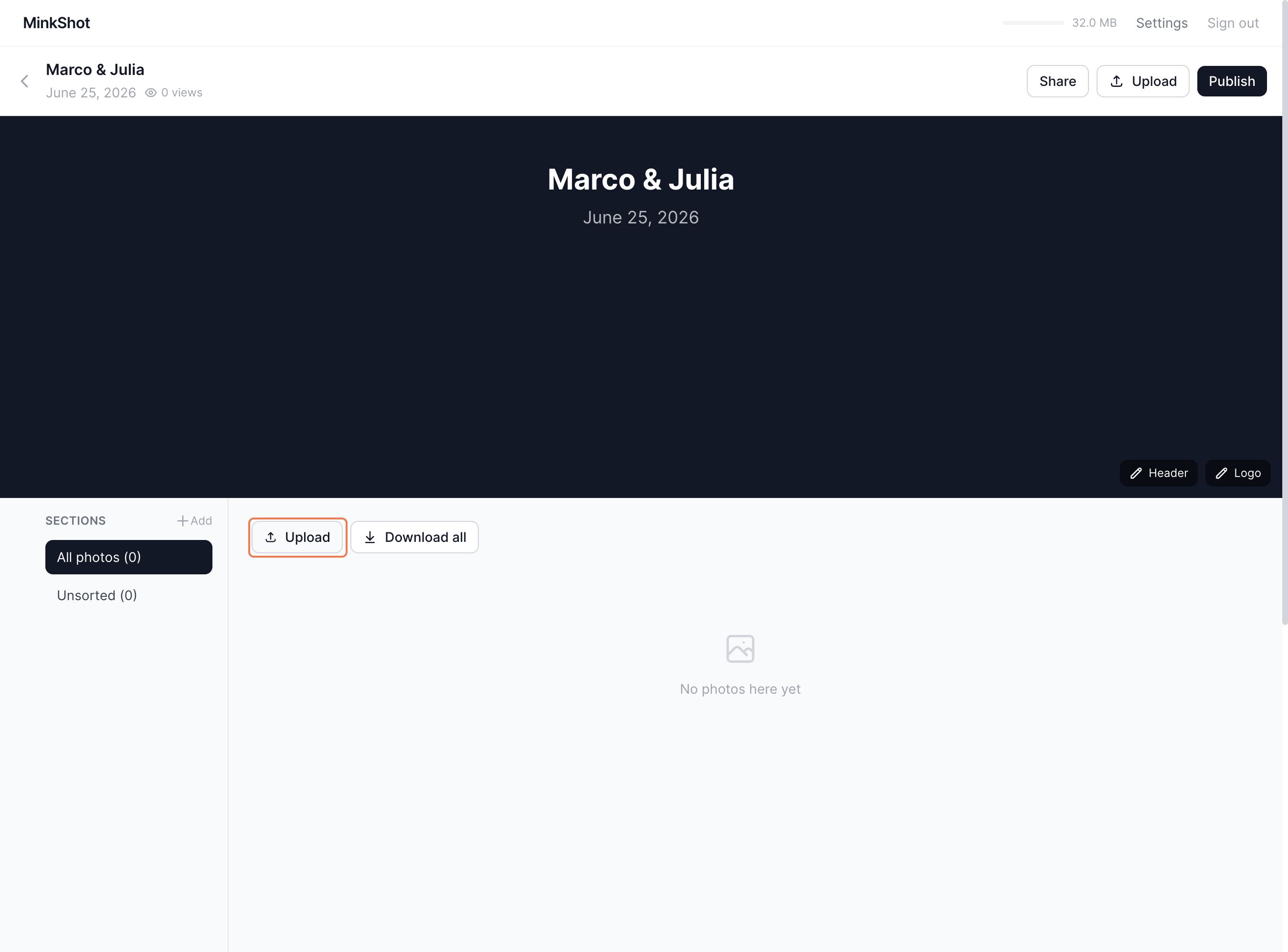
Step 5 — Click on Upload
Inside the gallery editor, click the Upload button to start adding photos.
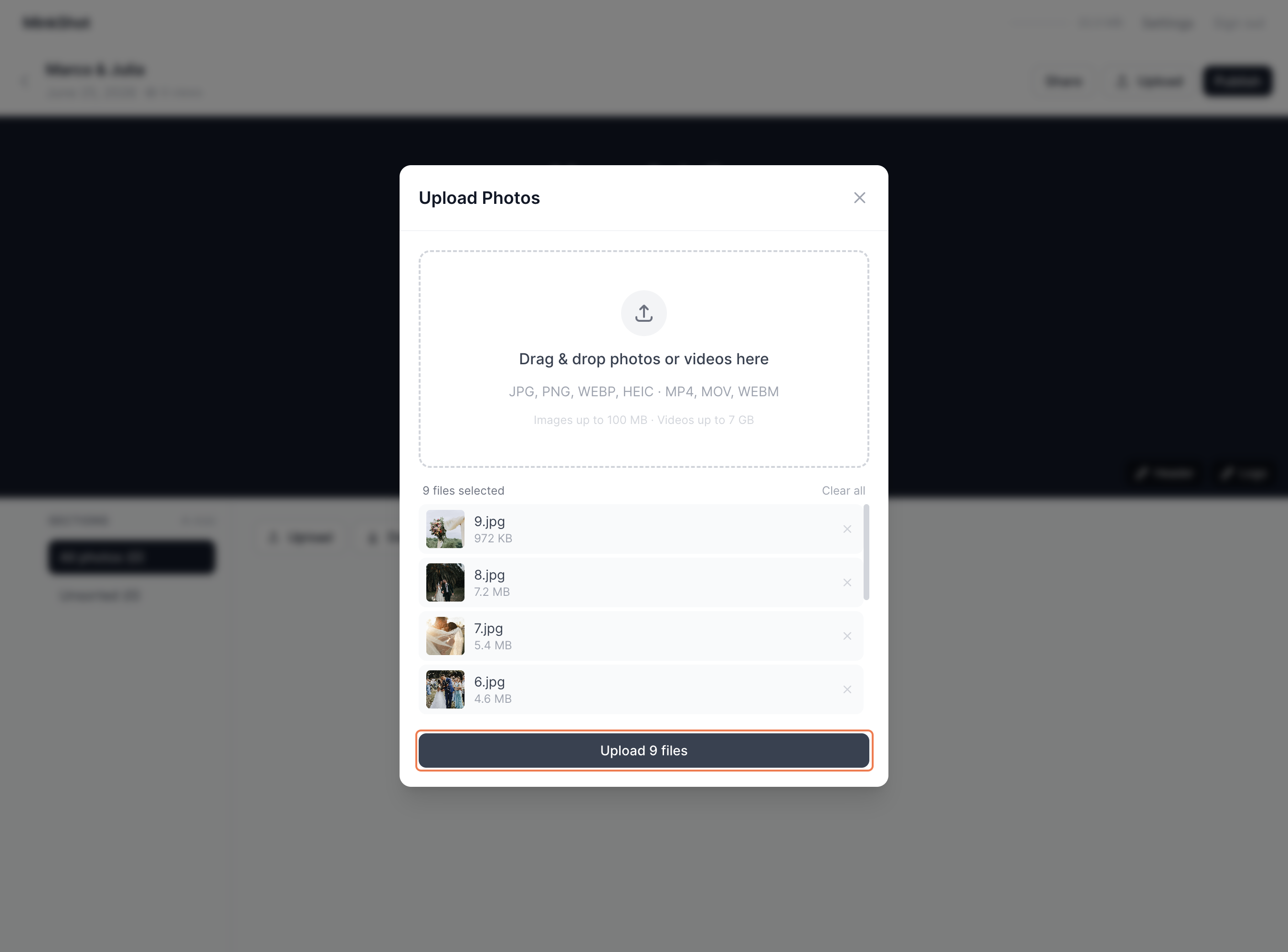
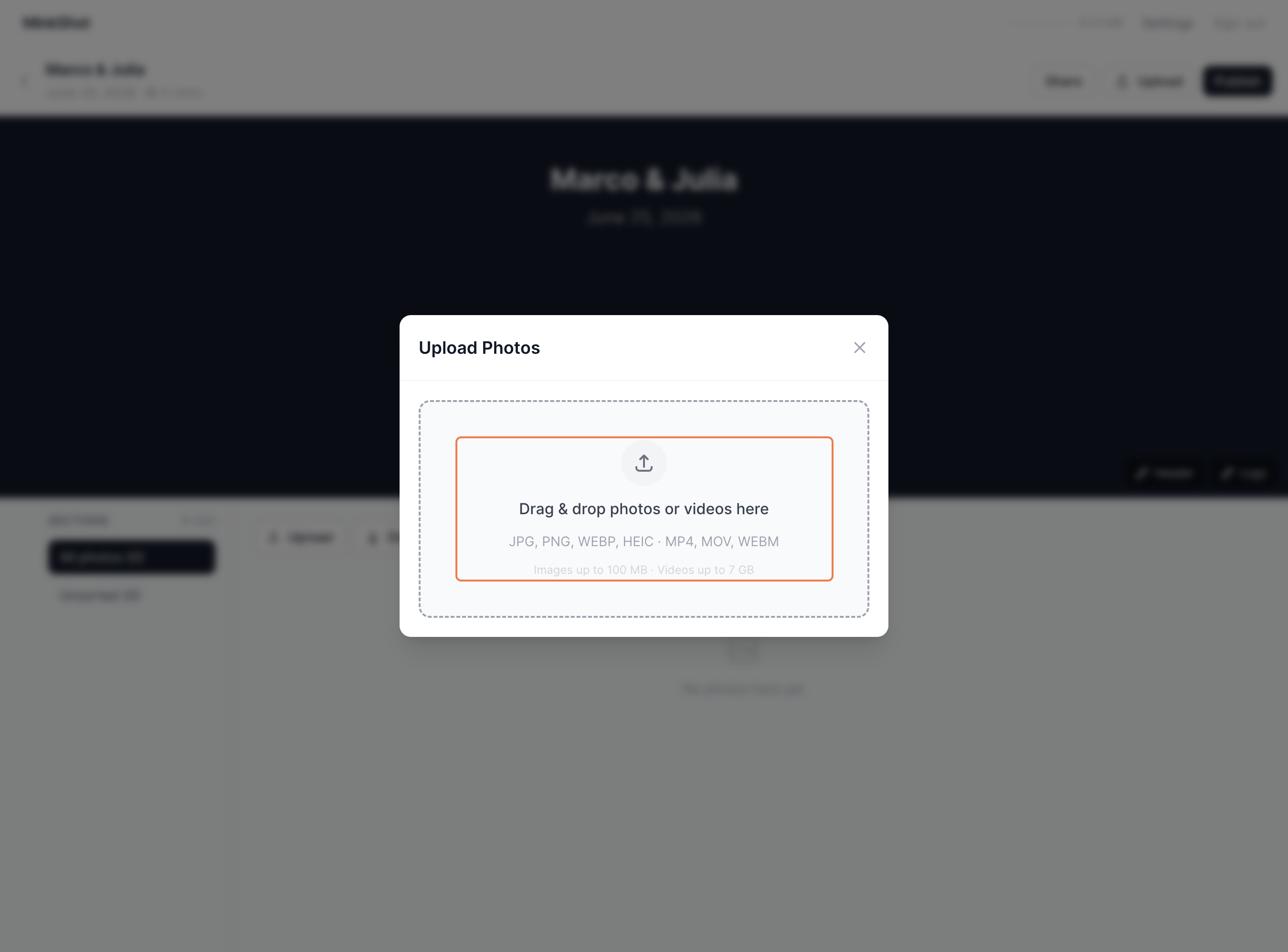
Step 6 — Click on Drag & drop photos or videos here…
The upload window will open. You can drag your files directly into the upload area.
Step 7 — Select your files and click Upload
Browse and select the photos or videos you want to upload, then click Upload.